 CopyVideoText
How to copy text from online course videos
Online courses are packed with slides, definitions and code. Instead of pausing and typing notes by hand, copy the text straight from the lesson into your notes.
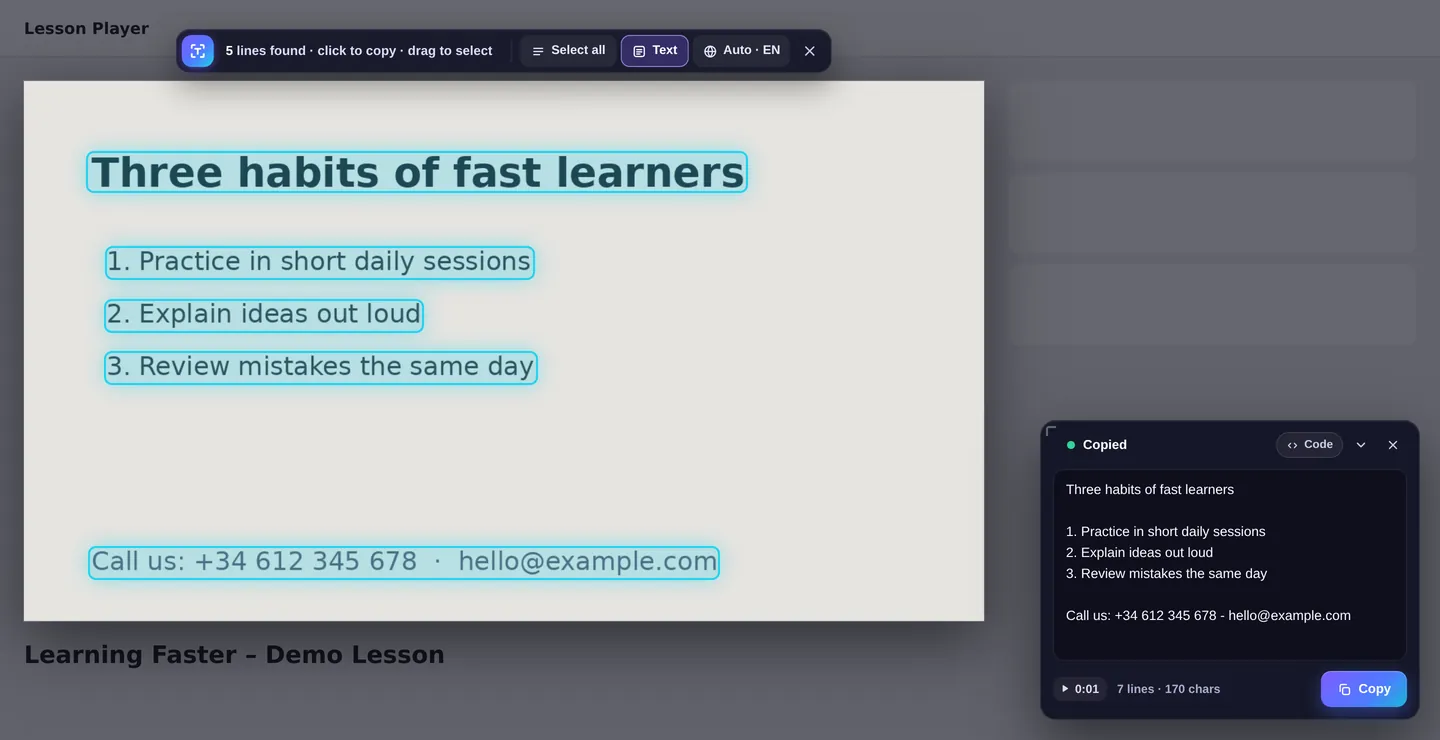
Make notes in seconds
- Add CopyVideoText to Chrome.
- Open your lesson on Udemy, Coursera or any course platform.
- When a useful slide appears, press “Copy text” or Alt+Shift+C. The whole slide is copied.
- Click a single line if you only need one definition, then paste it into your notes.
Your lesson notebook, built automatically
Every copy is saved in the extension, grouped by lesson, with the exact time in the video. Click the time to jump straight back to that moment and rewatch the explanation. When you're done, export all your notes to Markdown or plain text for Notion, Obsidian, Google Docs or any notes app.
Perfect for technical courses
In programming, data and IT courses, Code Mode keeps the indentation of code on screen and labels the language, so you can paste examples straight into your editor and follow along without typos.
Tips
- Set the lesson to the highest quality before copying.
- Use the course player's full-width mode for sharper text.
- Drag a box around one part of a busy slide to copy just that part.
Frequently asked questions
Does it work on Udemy and Coursera?
Yes. It works on most online course platforms, as long as the video isn't blocked from screen capture.
Can I export my notes?
Yes. Open the extension, press the menu next to the search box and export to Markdown or plain text.
Can I jump back to where I copied something?
Yes. Every copy is saved with its time in the video. Click the time to jump back.
Is my data private?
Yes. Your notes stay in your browser and nothing is uploaded.